Showing posts with label sql server management studio. Show all posts

Monday, May 8, 2023

MSSQL: Create linked server using SSMS (SQL Server Management Studio)

Setting up MSSQL Linked Servers

From MSSQL documents:
Linked servers helps executing T-SQL commands against other sql server instance or oracle.
To execute stored proc, the linked server needs to be defined as an instance of SQL Server.

sp_addlinkedserver (TSQL statement used to adding linked server).

Permissions needed:
when using T-SQL : ALTER ANY LINKED SERVER or setupadmin role
when using SSMS: control server or sysadmin fixed role is needed.

First method: SSMS 


These steps are to be done in the linked server target machine (the destination to which we wish to connect to)

1) Let us create a test db for this excercise in both source and target server (in my case it is windows 2019 server & windows 10 laptop)

Use the method outlined in previous blog - refer here.


2) Ensure to make SQL Server listen on the IP reachable from the other server.

a. Verify from the ERRORLOG (startup message, which port and ip the SQL Server is listening on)
2023-05-07 18:15:12.71 spid25s     Server is listening on [ x.x.x.7 <ipv4> 1434] accept sockets 1.  <<< this is the ip we are going to reach from other server
2023-05-07 18:15:12.72 Server      Server is listening on [ ::1 <ipv6> 1434] accept sockets 1.
2023-05-07 18:15:12.72 Server      Server is listening on [ 127.0.0.1 <ipv4> 1434] accept sockets 1.

Note: To enable your private network ip to be listened to apart from default 127.0.0.1. you have to go to SQL Server configuration manager > SQL Server network configuration > TCP/IP Properties > Ensure you set "Enabled = Yes" and "Listen All = No" > then in IP Addresses, navigate to the x.x.x.x ip you wanted to be listened to, set "Enabled=yes"

This change needs SQL server restart.

See quick screenshots below..

The target protocal page:


The target IP Addresses page:


3) Add port exceptions in windows defender/antivirus based firewall.
4) Ensure you have a user account with necessary permission...

a. Ensure the SQL Server authentication mode is known and set as expected (mixed mode in my case & for this test case).
b. Create a user with the below commands

USE master
GO
CREATE LOGIN tsqltestdb_user WITH PASSWORD='tsqltestdb_user', DEFAULT_DATABASE=[tsqltestdb], DEFAULT_LANGUAGE=[us_english], CHECK_EXPIRATION=OFF, CHECK_POLICY=OFF
GO
use tsqltestdb
create user tsqltestdb_user
for login tsqltestdb_user
with default_schema=dbo;
go
ALTER ROLE db_datareader ADD MEMBER tsqltestdb_user;
go

       c. Ensure you verify that your able to connect to the user using sqlcmd as below...

C:\Users\lab>sqlcmd -U tsqltestdb_user -P tsqltestdb_user
1> select * from t1;
2> go
i      j
------ ----------
     1 V
     2 R
(2 rows affected)
1> SELECT @@servername
2> go
--------------------------------------------------------------------------------------------------------------------------------
DESKTOPXXXXXXXXXXXXX
(1 rows affected)
1> SELECT @@servicename
2> go
--------------------------------------------------------------------------------------------------------------------------------
MSSQLSERVER
(1 rows affected)
1>

5) Get the name of the target server and instance you wish to connect to using the below commands...

To get the server name:

SELECT @@servername
go
To get the instance/service name:
SELECT @@servicename
go
Example output:
1> SELECT @@servername
2> go
--------------------------------------------------------------------------------------------------------------------------------
DESKTOPXXXXXXXXXXXXX
(1 rows affected)
1> SELECT @@servicename
2> go
--------------------------------------------------------------------------------------------------------------------------------
MSSQLSERVER
(1 rows affected)
1>

Now on the source machine, where the linked server has to be created:

6) Try connecting to the linked server target using the below sqlcmd command from the linked server source; it should succeed. Ideally this meand we are able to connect fine.Note: SQL Browser isnt needed for this authentication to happen (meaning the SQL browser can stay stopped/disabled in linked server target)

C:\Users\testusr>sqlcmd -U tsqltestdb_user -P tsqltestdb_user -S tcp:192.168.0.7,1434
1> exit
C:\Users\testusr>

7) Let us connect to SSMS using windows authentication on the source machine (linked list creation server)

8) Let us navigate to the below option

Open [Object Explorer] > Expand [Server Objects] > Right-click [Linked Servers] > Select [New Linked Server]

An option like below screen opens up...

Please follow the screenshot to create the linked server and test as well.


To test the linked server:

Openquery method:

select * from openquery("x.x.x.7,1434",'select * from t1');


4 part query method:

select * from "x.x.x.7,1434".tsqltestdb.dbo.t1;


Both worked in our ssms based linked server setup. But the sqlcmd couldnt get past the '.' characters in ip.

Note: Microsoft asks us to enter the name of the server alone in case if its a default sql server instance (if it is named, use named instance).

Remember we arent using default port, hence we have to put a comma followed by the server name and give the nodefault port as well. In our case it was 1434.

8) Since I dont have name resolution, I ended up using IP. The IP isnt working very well when sqlcmd is used to query the linked server.With either openquery or 4 part query.

This closes the excercise.

Thank you!

Monday, April 10, 2023

MSSQL Learning Notes

My course notes on MSSQL..

Day 1:

1. sql server - rdbms

2. sql server install - instance

3. we can have many instances of sql server on the same machine

4. 1 instance of sql server - can have many dbs

5. when accessing multi instance windows server, mention the ip/instance name to connect to the sql server

6. System admin (super user on windows)

7. Database admin (super user on the db)

8. User roles (Users with permission to perform a specific task)

9. T-SQL is the language you interact with sql server

10. Management Studio is the GUI to be used for managing the SQL server

11. SQL CLI by default gets setup along with sql server

12. SQL server installation results in installing the necessary services

13. By default we get SQL Server Agent, SQL server (the actual sql server service), SQL Server Browser installed

14. You can use sql server configuration app to modify the sql server service and other configurations.

15. SSMS (SQL Server Management Studio) is used for connecting to the SQL Server

16. SSMS when started, it will ask you to mention the server type/server name/authentication info.

17. To connect to the sql server...

a. Server Type: Database Engine

b. Server name: host\<instance name>; if there is only one instance and is local server, then use the current hostname alone

c.  Authentication: windows authentication (which is local pc), sql server authentication (local to the server/instance), AD (across the dbs/server)

18. As soon as we connect using SSMS to the sql server, we have to goto the object explorer.

19. In the object explorer you can notice who your and which sql instance your connected to

20. In the security tab, enable sa account (enable from properties->status & set new password properties->password/confirm password)

21. Right click on the instance tab, properties enable sql server and windows authentication tab. This allows users to connect using sql server authentication as well.

22. SSMS allows restore of database using backups preserved before. Right click on the Database tab in the object explorer, restore database option and then select File as source and then click on ... (backup device) on the media and then click on add; you will see the various paths accessible for the backup file location. You can copy the backup over to the default location or you can choose the file from here and then clock restore.

23. Once the db is restoed, we should see the restored db accessible under databases object.

24. Creating a database.. Again right click on the database object and then click on create new database. The new database option will now show up with various options.. 

25. Click on the general option and then type the name of the db

26. We have 2 file groups created by default, 1 - row data where actual data gets stored and other is the log group which stores the transaction log for the database.

27. We can edit the file group location, initial size, incremental size and maxsize as per standard.

28. When we select records from table, the table will be prefixed with <dbname>.<schemname>.tablename

29. SSMS - TSQL looks like is autocommit as well.

30. The update, insert, select (except few format options) are resembling oracle and postgres syntax

31. View creation for now is done using GUI, need to check its TSQL syntax.

32. SQL Server Installation Center is the wizard for adding additional features and components to SQL Server installation existing.

33. To connect to the local SQL Server using SSMS. You can use the keyword localhost or . in the servername field like below..

localhost\MSSQLSERVER

.\MSSQLSERVER

34. Windows authentication mode is very secure and recommended mode of authentication in MSSQL server, since it has options to integerate multi factor, finger print etc.. and is much controlled than database authentication which only has usn/psw validations.

35. To stop user from login, just go over to security->logins->choose the candidate user->clear the checkbox for the login option.

36. If you dont know the instance name of the SQL Server - use none in sqlcmd. Just run the below command without any additional inputs.

sqlcmd

37. The system db purposes... [not used to store user data]

master - the db where all the system metrics are kept

model - the db which will be used in creating a new db (cloning)

msdb - the db used for task scheduling

tempdb - the db used for sorting and other operations.

38. If we dont mention the schemaname while table is getting created, the table will go to dbo schema; which is database owner schema.

Day 2:

39. tinyint use case - age

datatypes:

tinyint

smallint

int

bigint

decimal(p,s) - precision >total number of numbers to numeric(p,s) - same as above

display, scale number of numbers to the right

smallmoney - 200thousand (- to +)

money - 900trillion (- to +)

time  - 24hrs scale

date - jan 1 0001 to 31 dec 9999

datetime2 - both date and time togather

datetimeoffset - datetime2+timezone

char - 8000chars

varchar - same as above

nchar - 4000chars

nvarchar - same as above

varchar(max) - 2GB size

nvarchar(max) - 2GB size

40. To fix the ownership of the db:

SSMS method:

Goto DB>right click>goto files>set owner to the respective user found under login option (use search to find the owner if needed).

41. getdate is a function to get current date and time from system.

42. For setting default value for the table, use SSMS -> table design wizard > Set Default/Binding value

43. There can be only one clustered index in a table

44. Clustered index are sorted

45. Other indexes created are not clustered but they point the location in the clustered index.

46. Query Store is AWR in oracle, which helps provide us with query run stats including the plan :)

Day 3:

47. creating backup of a db:

Right click on candidate database > Tasks > Backup 

48. Restore the db:

Right click on candidate database > Tasks > Restore

49. Remember choosing the timeline to perform the restore will use the transaction log as well.

50. SQL Server Agent is the one used for scheduling the regular maintenance tasks in SQL Server like Backup, index rebuild etc...

51. Availability Group is always ON and ready to take up the primary role (It applies the read/write tx as it happened in primary using the TX logs) -- might be like the implementation of max protection or max avaialbility of oracle (usage of standby redolog, where the logs are shipped as they were created in primary).

52. Log Shipping - Warm Standby config, where you can add some delays; the TX logs are recovered as instructed (is like max performance or max availability mode of oracle - where we can configure the delay)

53. Fixed Server roles in MSSQL:

sysdba in oracle is sysadmin MSSQL

serveradmin role can be used to edit the configuration and shutdown of the server

security admin role is used to manage the other user accounts

dbcreator is to create/alter/drop/restore the db

public - default role all the users are assigned to


54. DB roles: is equivalent to SYSTEM privs in oracle

db_owner - perform any activity in the db

db_backupoperator - can backup the db

db_ddladmin - CREATE/ALTER any structure or relationship in the db (simillar to create and alter privilege of oracle)

db_datawritter - add/delete/modify data in the db (simillar to insert any/update any/delete any role)

db_datareader - allowed to read any table (select any role).


55. We can use the below query

to grant insert into a schema altogather for a user:

grant insert into schema :: humanresource to humanresource_reader;


56. to mask a column value (a user with alter table privilege) - we can use the below command:

Command Template:

use <dbname>

go

alter table <tablename>

alter column <columnname> add masked with (function = 'email()');


Example:

use landonhotel

go

alter table humanresource.employees

alter column email add masked with (function = 'email()');


57. to drop a column mask:

Command template:

use <dbname>

go

alter table <tablename>

alter column <columnname> drop masked;


Example:

use landonhotel

go

alter table humanresource.employees

alter column email drop masked;


58. To view encrypted column data in SSMS..

We should modify the always encrypted to enabled state in the connection window.

Enable always encrypted -> close the connection -> connect again with (option) always encrypted enabled -> then you can view plain text of encrypted data or you can disable the encryption.


59. You can remove the certificate used for encryption after it is disabled (if you have chosen user certificate during encryption enable) by going to "manage user certificates" > Personal > Certificates > Always encrypted auto certificate1 (right click and remove)

60. to transfer a table from one schema to other:

here from dbo to reference schema the books table is moved.

alter schema reference transfer dbo.books;


61. System DBs:

Master - the db which is used by the SQL Server Engine (contains db tables, views , procedures, function necessary for the sql server engine to function)

Model - the db which is used for creating new user dbs (we can customize this db if needed to create a new db)

msdb - the db which is used by sql server agent, which is used by the agent to schedule jobs, keep track of the jobs, backup information and other maintenance routine.

tempdb - the db which is used for all temp operation like sort, join, index rebuild etc. This db will be recreated everytime the db is restarted.


62. Performance Optimization operations on tempdb:

1. increase the initmb to 100MB

2. autoincrement size by 10%


63. Dynamic Management Views:

Permission to view server scopped DMVs:

view server state

Permission to view DB scopped DMVs:

view database state


64. Sample views are:

view to display the db file usage statistics of current db:

select *

from sys.dm_db_file_space_usage;


view to display connected sessions:

select *

from sys.dm_exec_connections;


view to display index usage stats:

select db_name(database_id) as dbname

,object_name(object_id) as objname

,*

from sys.dm_db_index_usage_stats;


65. To estimate checkdb duration:

dbcc checkfilegroup(0, noindex)

with physical_only,

estimateonly;

go


66. To perform actual check:

use <dbname>

go

dbcc checkdb;


The command checks if there any corruptions in the pages allocated. Reports a summary at the end of the validation. We have options to rebuild index (incase index is corrupted) and repair pages(meaning wiping off).


The checkdb command needs sufficient space in tempdb to perform the operation.


These are my course notes.

Thanks

Saturday, April 8, 2023

MSSQL server: Stop/Start MSSQL Instance options (SQL Server Configuration Manager & Sql Server Management Studio)

Objective: How to stop/start MSSQL instance

Server: Windows 2022

SQL Server: 2019 (version 15)

We have 2 (possibly more), options as far as I have learnt...

1. Using SQL Server configuration Manager

2. Using SSMS (SQL Server Management Studio)


Option 1 - Restart MSSQL using SQL Server Configuration Manager:

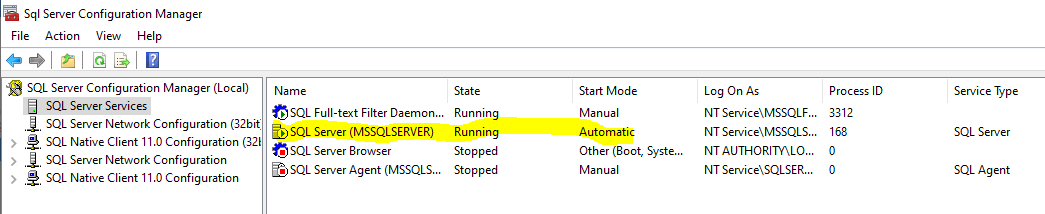
a. Go to start (if you already have a shortcut, then use it like below) & click on the SQL Server 2019 Configuration Manager


b. Look at the current state of the SQL Server (Notice the SQL Instance name: MSSQLSERVER, in case you have multiple instances - ensure to choose the right one).


c. Then perform PAUSE > STOP > START or STOP > START action as needed.


This is what Microsoft has to say about stop/start/pause/restart options...

Start - Will start the SQL Server service & accept new connections
Stop - Will stop the SQL Server service
Restart - Will stop/start the SQL Server service
Pause - Will make the service stop accepting new connections & let existing connection continue to use the service until their connection is either broken or closed.
Resume - Will allow the service to accept new connections as well.

d. I have decided to STOP > START the MSSQL service here


You see after the service is started, we didnt select any service; hence the action tab just vanished.
Anyway this is how the sql server needs to be stopped and started.
To check if the restart was success, we can try make a connection using SSMS and also check the db alert log from SSMS

Option 2 - Restart the MSSQL server using SSMS:
Goto Start > SSMS (in search) >  you will see the SQL Server Management Studio 19 (latest) popping up


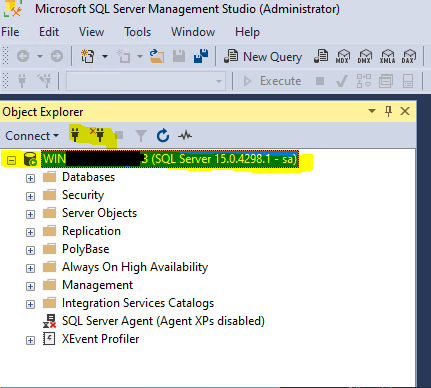
Open the application & connect to the db as sa (system administrator) - note I havent setup any additional roles, so I am proceeding with the default sa account.


Notice below after we click connect, we are connected. The connection details are highlighted below with host to which we are connected and the user who we connected

So a successful connection means - we performed first validation
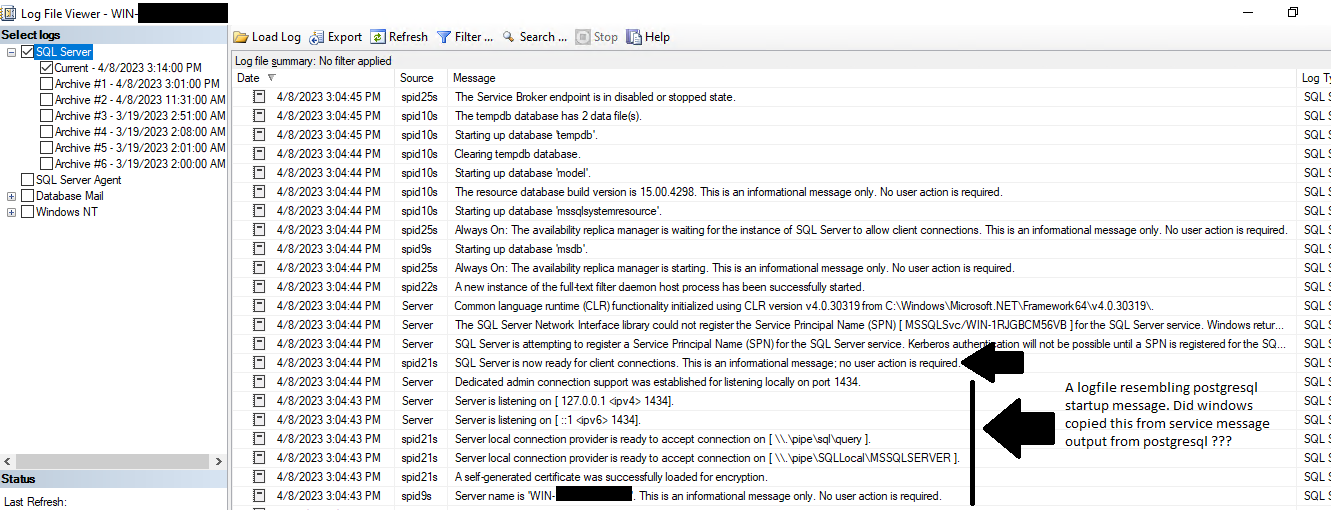
Go to Management > SQL Server Logs > Current - <date> log


This will open a new window called "Log File Viewer". You can notice a message saying db is ready to accept connection like ... "2023-04-08 15:04:44.10 spid21s     SQL Server is now ready for client connections. This is an informational message; no user action is required."


I looked @ compmgmt.msc (event viewer for app/system etc.. this type of messaging isnt available). I used process explorer and process monitor to see what the application is to open it independently without connection to db; but it is a dll


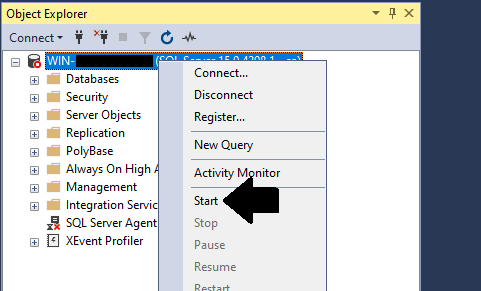
Anyway this is 1 method. 2nd method is more or less the same. Just using SSMS (SQL Server Management Studio). You can see below it is the same setup of option from the drop down. But remember we are using db credential this time which is 'sa'.


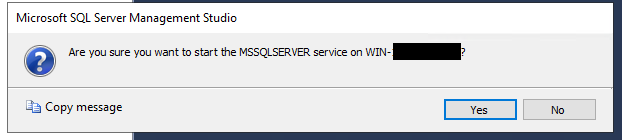
As soon as you click STOP, you get the below message...


Once you stop the db, you see START only option now to start the database.


When we click on START..


The db starts fine..

You now see 3 options as to pause/stop/restart...


As usual we verify the log and ensure the db restart was successful.

Please Note: In case you have stopped the MSSQL and disconnected from the SSMS. It isnt possible to connect to the MSSQL from SSMS later either using windows authentication or SQL Server authentications. It will fail saying the sql server connection failed (pipe broken sort of message) and authentication wont happen. 

In this case, please go to SQL server configuration manager to start the database (using the play button).

Thanks for visiting the blog.


OKV platform certificate rotation - pitfall , awareness!!!!

OKV version: 21.9 Setup: Multimaster R/W cluster Plan: https://docs.google.com/spreadsheets/d/e/2PACX-1vSaXXTjj9cE1fvYpNmsDNBOkTIw78yTwQ6a9o...