Showing posts with label key vault. Show all posts

Tuesday, September 17, 2024

Step by step procedure to setup or manage the backup destination disk space - manage backup destination policy

Manage backup destination policy 


To maintain the backup destination space, we need to schedule a backup purge policy.

We need to create a backup destination policy (like backup schedule we created).


A) Create backup destination policy:


User: system administrator


OKV console -> system -> settings -> backup & restore -> system backup page -> manage backup destinations -> manage policies -> create -> save


Provide the details:

name: name of the policy [backup_destination_policy_01]

recent backups to preserve: number of backups to preserve

purge backups after (in days):  number of days after which we delete the backup; excepthe recent backups which were to be preserved

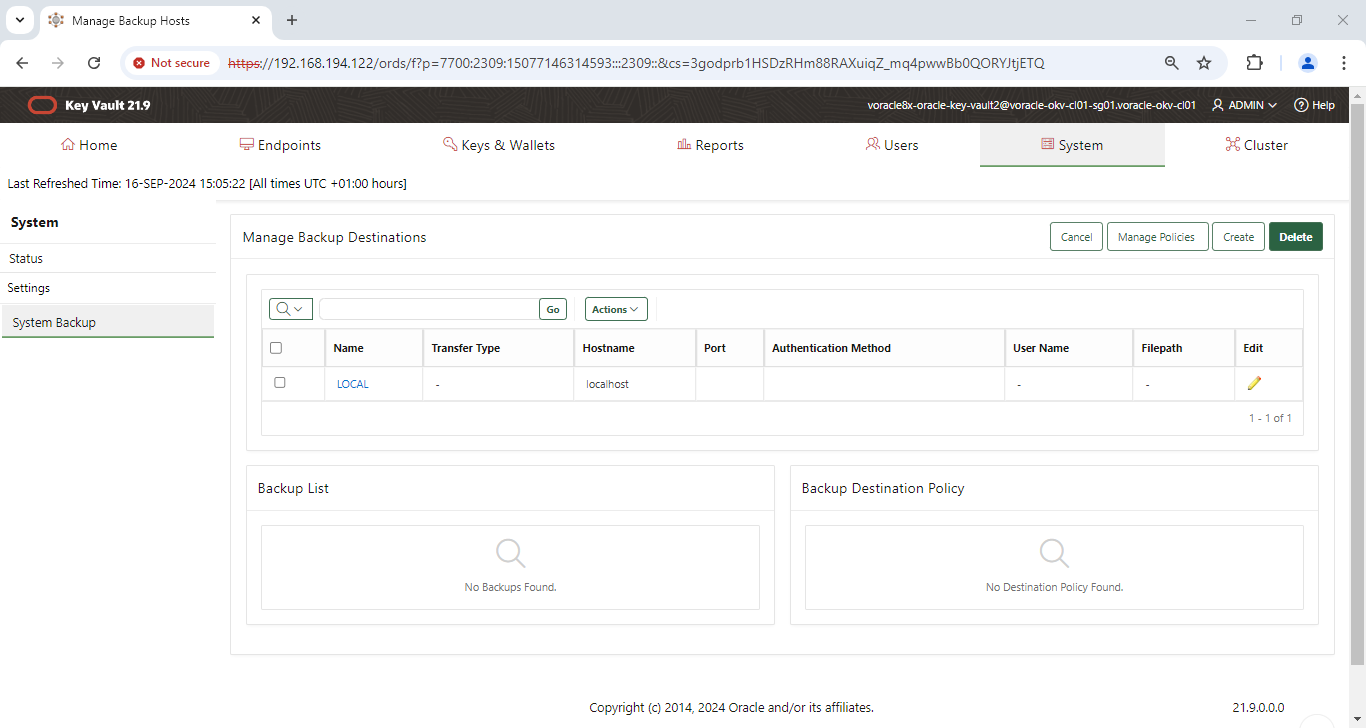
Manage Policies under (OKV console -> system -> settings -> backup & restore -> system backup page -> manage backup destinations)

Manage Backup Hosts - Google Chrome


Manage Backup Destination Policies - Google Chrome


Create Backup Destination Policy - Google Chrome


Explanation for above:

Book1 - Excel


Manage Backup Destination Policies - Google Chrome

B) Change backup destination policy:


OKV console -> system -> settings -> backup & restore -> system backup page -> manage backup destinations -> manage policies -> Edit 


we will have options to edit 

a. recent backups to preserve

b. purge backup after (in days)

Edit Backup Destination Policy - Google Chrome

Mapping backup destination policy to backup schedule:

Edit Backup Destination - Google Chrome


After save:

Manage Backup Hosts - Google Chrome


From here, we have an option to Suspend and Resume backup destination policies.

C) Suspending the backup destination policy


We need to repeat the below procedure for each remote destination, for the backup destination policy to stay suspended on them, so no backup purge happens.


OKV console -> system -> settings -> backup & restore -> system backup page -> manage backup destinations -> select destination -> select suspend in the backup destination policy


D) Resume the backup destination policy


We need to repeat the below procedure for each remote destination, for the backup destination policy to start affecting the destination, so backup purge happens.


OKV console -> system -> settings -> backup & restore -> system backup page -> manage backup destinations -> select destination -> select resume in the backup destination policy


E) Finding info about backup destination policies


This is to get info about list of available backup destination policies and the backups impacted by them


OKV console -> system -> settings -> backup & restore -> system backup page -> manage backup destinations -> available backups and policies associated with backup destination -> manage policy -> current backup destination policy and purged backups


YouTube Video:


Thanks


Step by step procedure to configure OKV remote backup for version 21.9

 Procedure to config OKV backup (version 21.9)


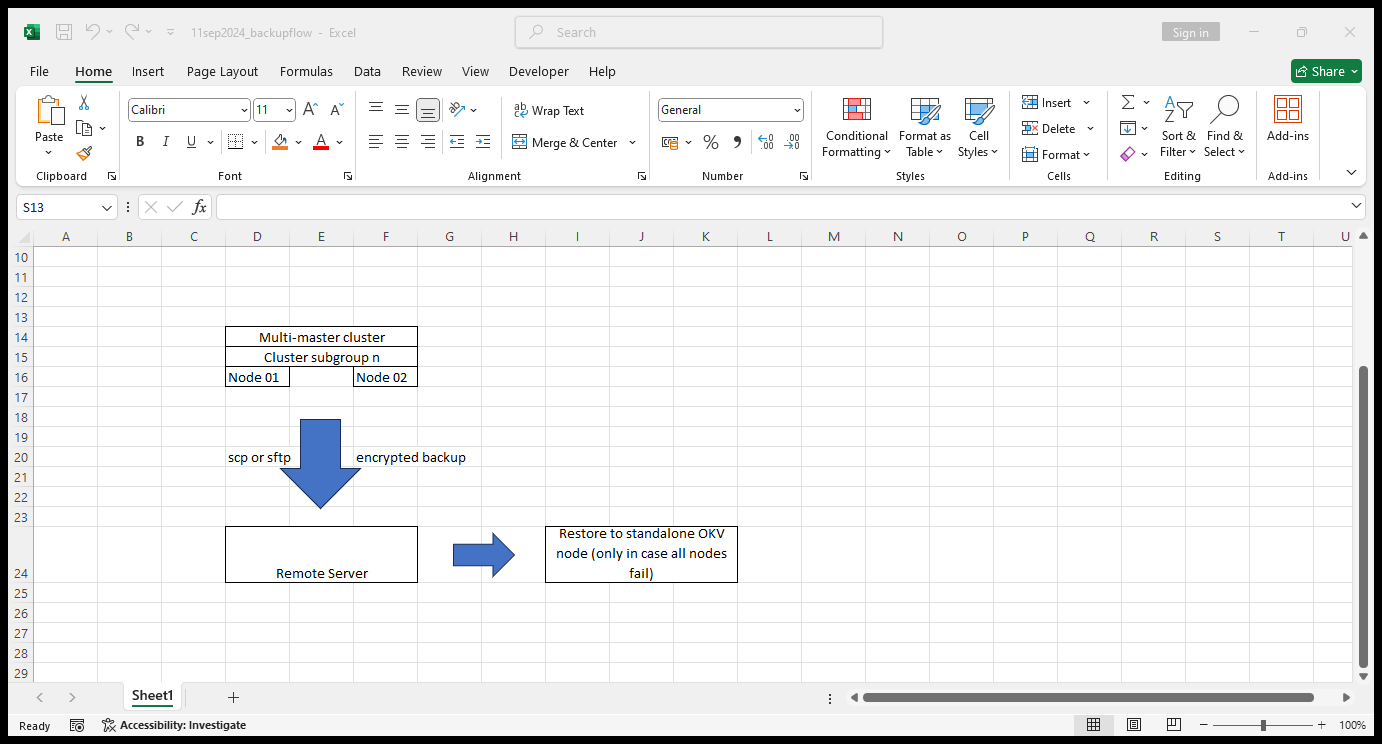
Backup Flow illustration:

11sep2024_backupflow - Excel


Steps:

  1. Backup destination creation

  2. Backup schedule

  3. Test backup and validation


  1. Backup destination creation

a. Identify a target remote server, if one exists; to keep OKV backups.

remote server: vcentos79-oracle-sa1


2. Create necessary additional disk space for the backup with necessary user account


vgs

lvcreate -L 28672 appdata2_ssd2-vg -n okvbackup_ssd2

vgs

lvs

lvdisplay

df -Th

mkfs.xfs /dev/appdata2_ssd2-vg/okvbackup_ssd2

cp /etc/fstab /etc/fstab_16sep2024.bkp

vi /etc/fstab

mkdir /okvbackup_ssd2

mount /okvbackup_ssd2


3. Goto OKV web console and perform the following operations as system administrator


A. Create remote destination


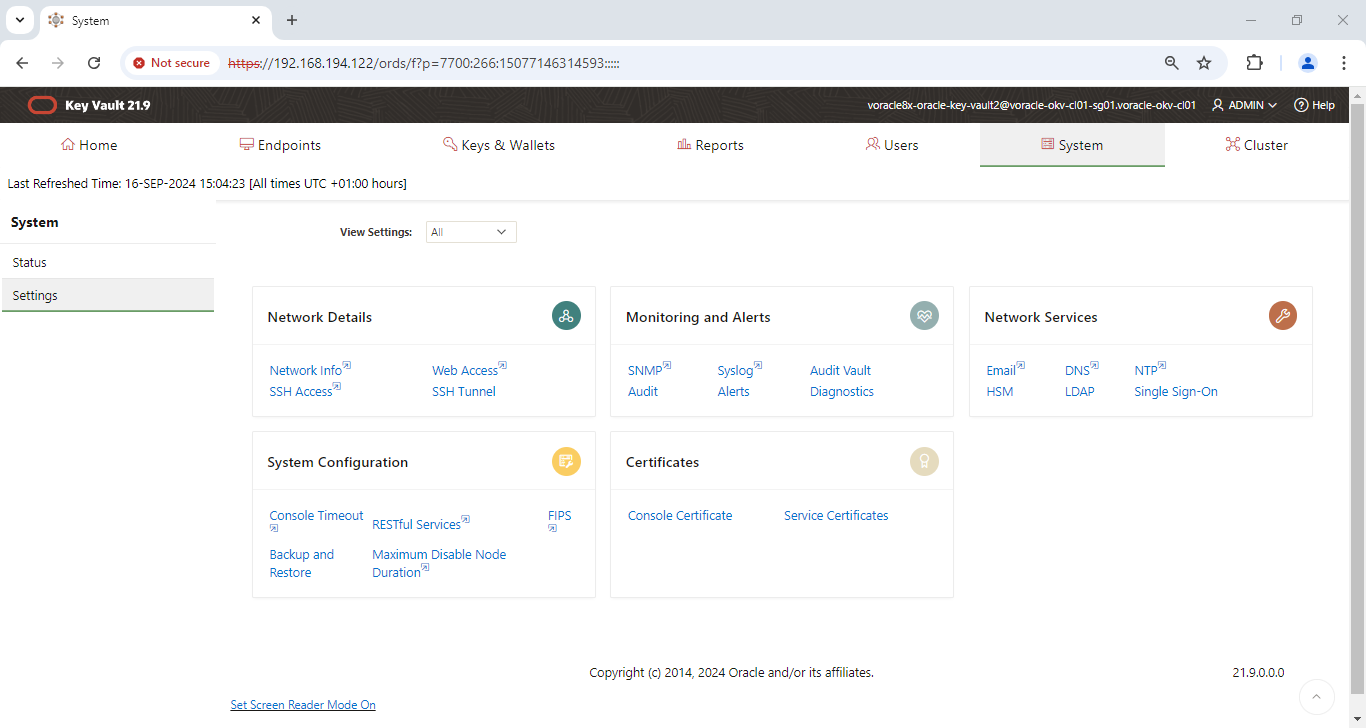
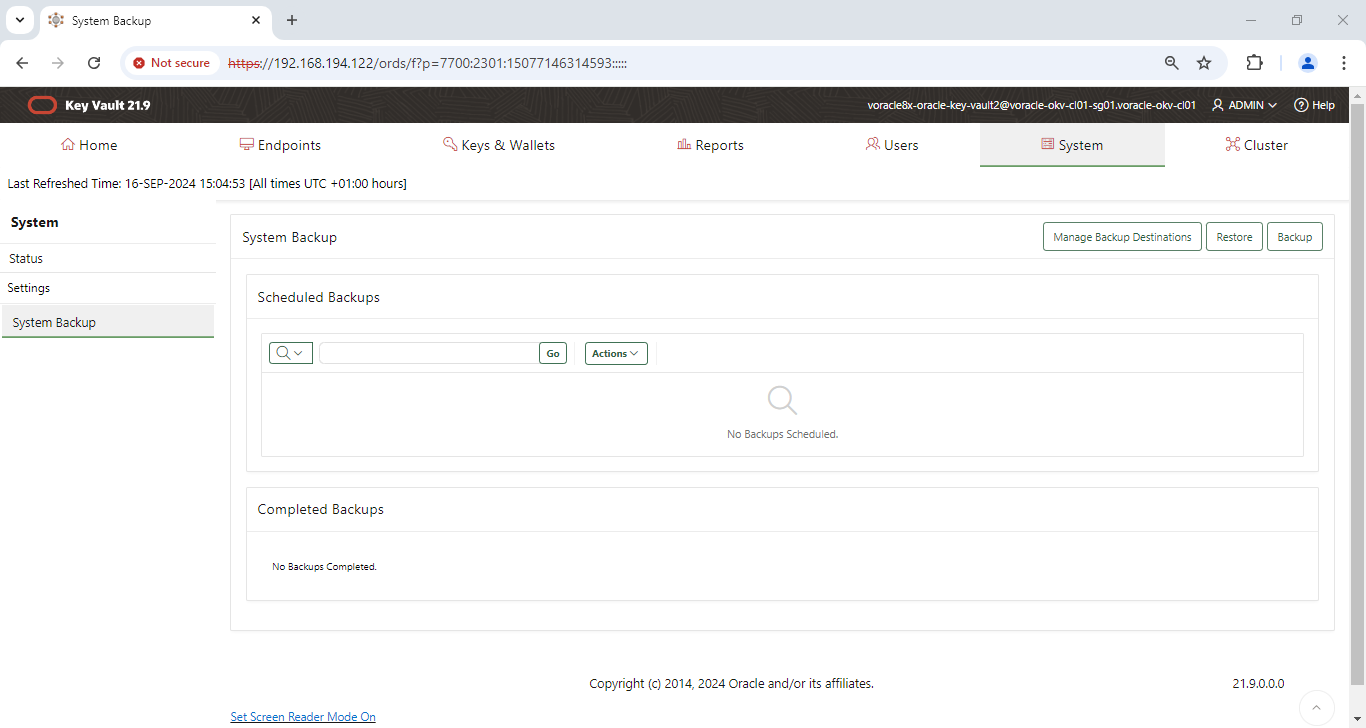
OKV console -> system -> settings -> backup & restore -> system backup page -> manage backup destinations -> create


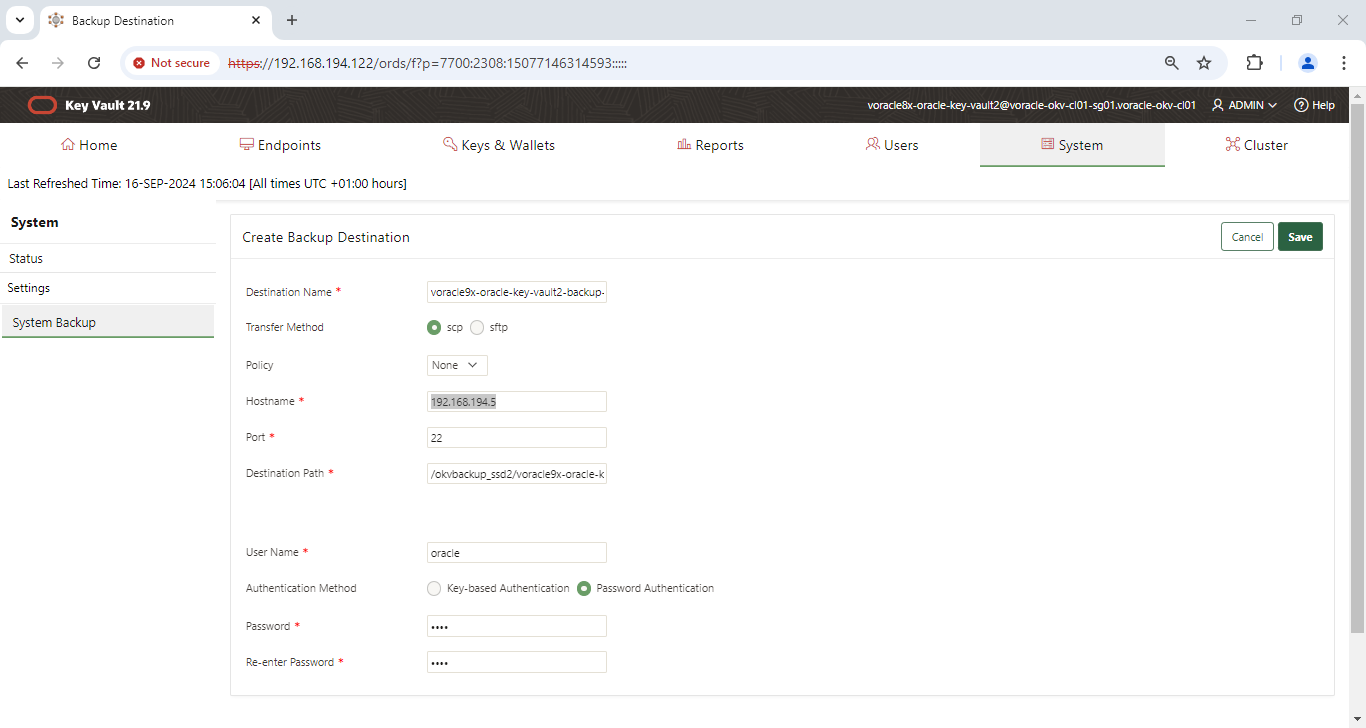
destination name: remote_backup_dest1

remote server name: vcentos79-oracle-sa1

remote server ip: 192.168.194.5

remote server usn: oracle

remote server pswd: ?

Transfer method: scp

destination path: /okvbackup_ssd2/voracle9x-oracle-key-vault2-backup-dest1


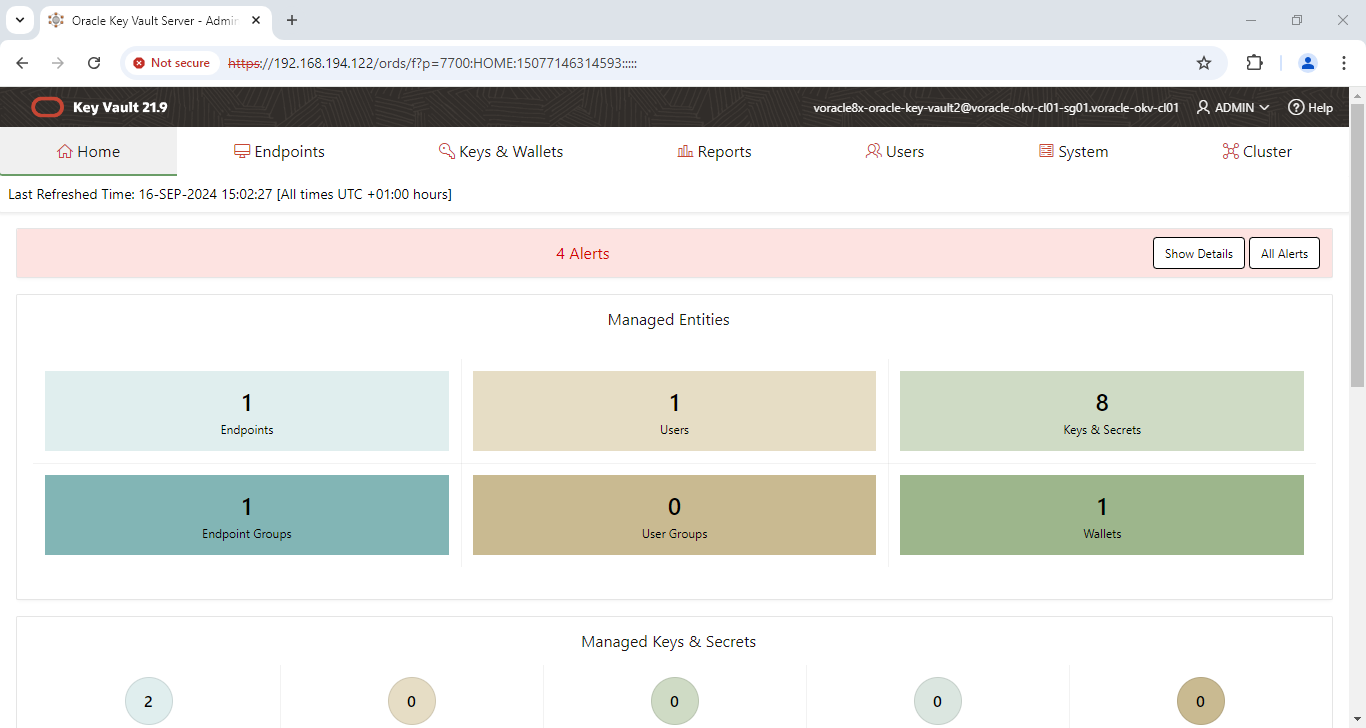
OKV Home page…


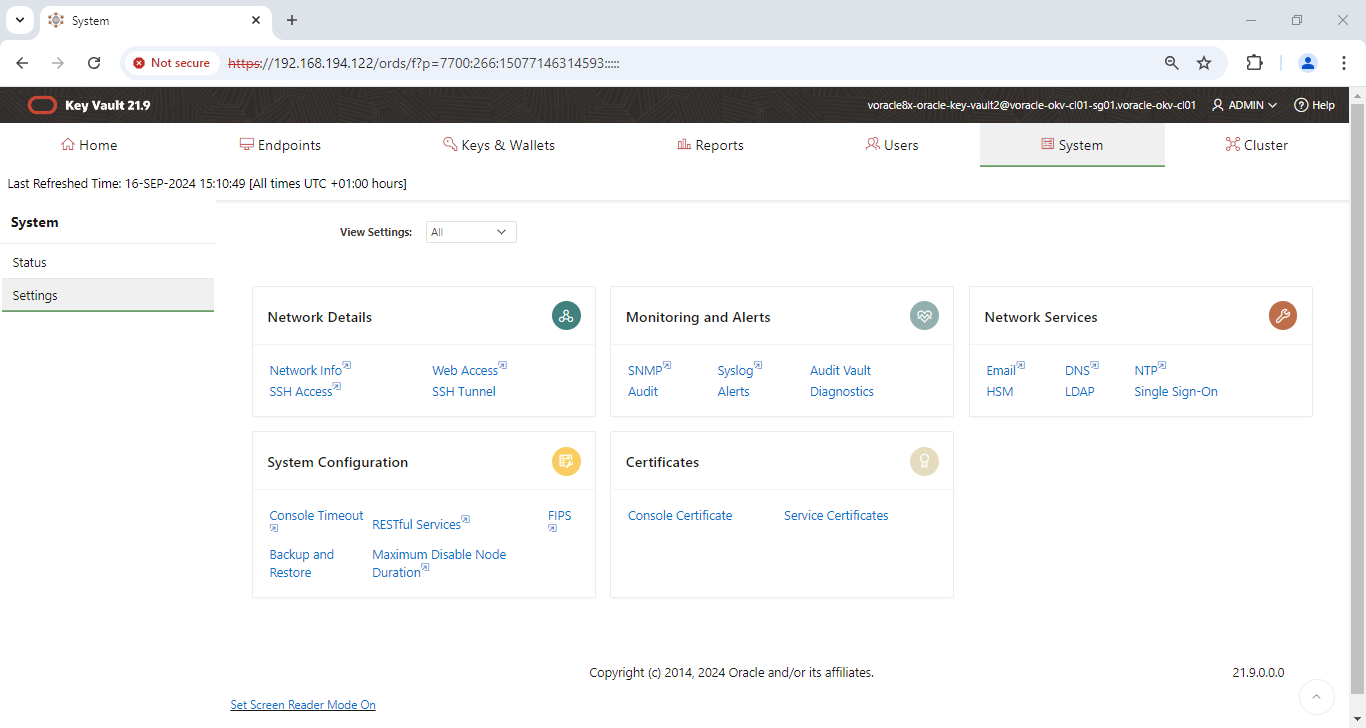
Oracle Key Vault Server - Admin Home - Google Chrome


System - Google Chrome

System Backup - Google Chrome


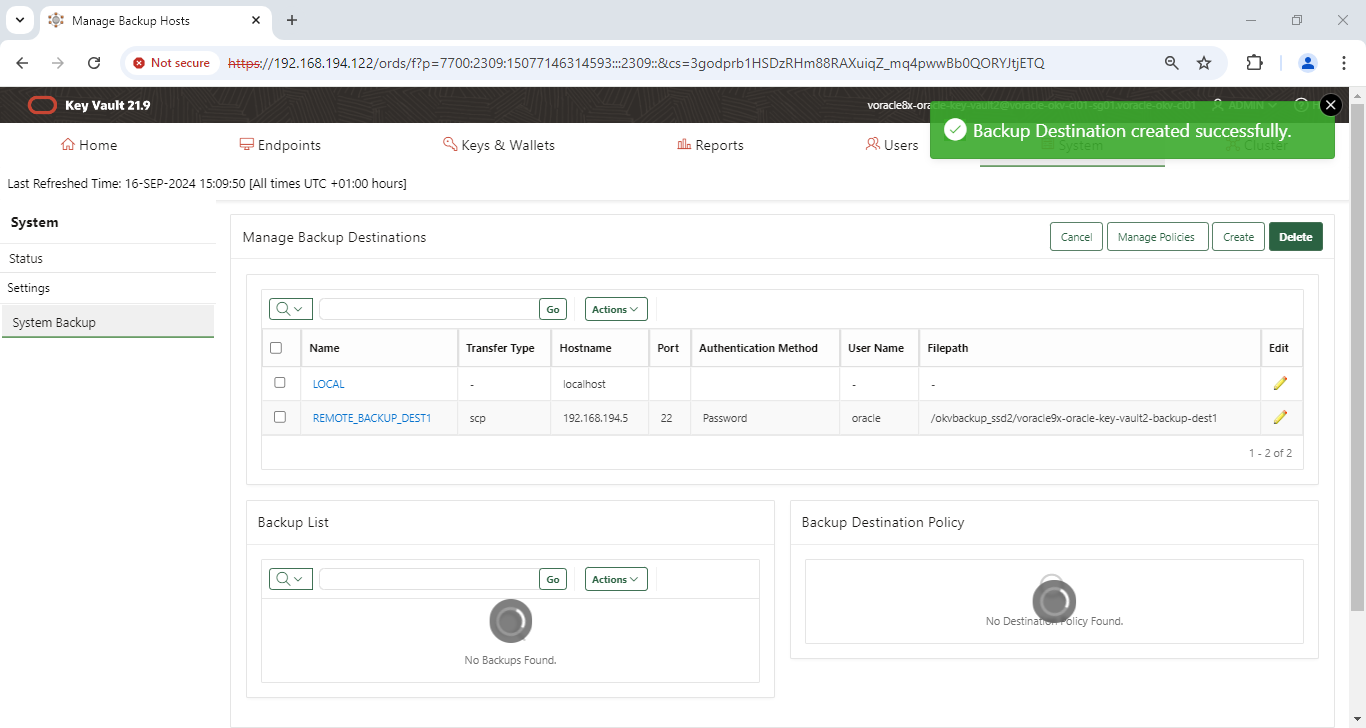
Manage Backup Hosts - Google Chrome


Manage Backup Hosts - Google Chrome


Backup Destination - Google Chrome


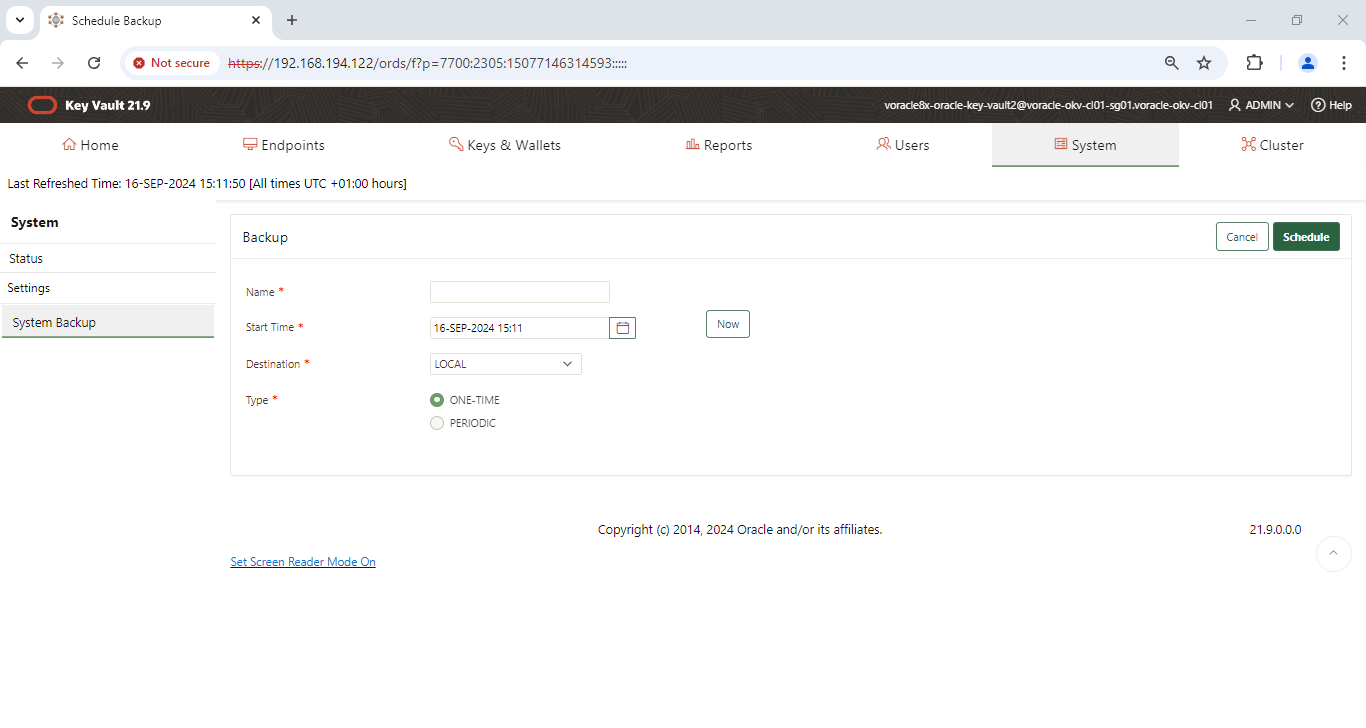
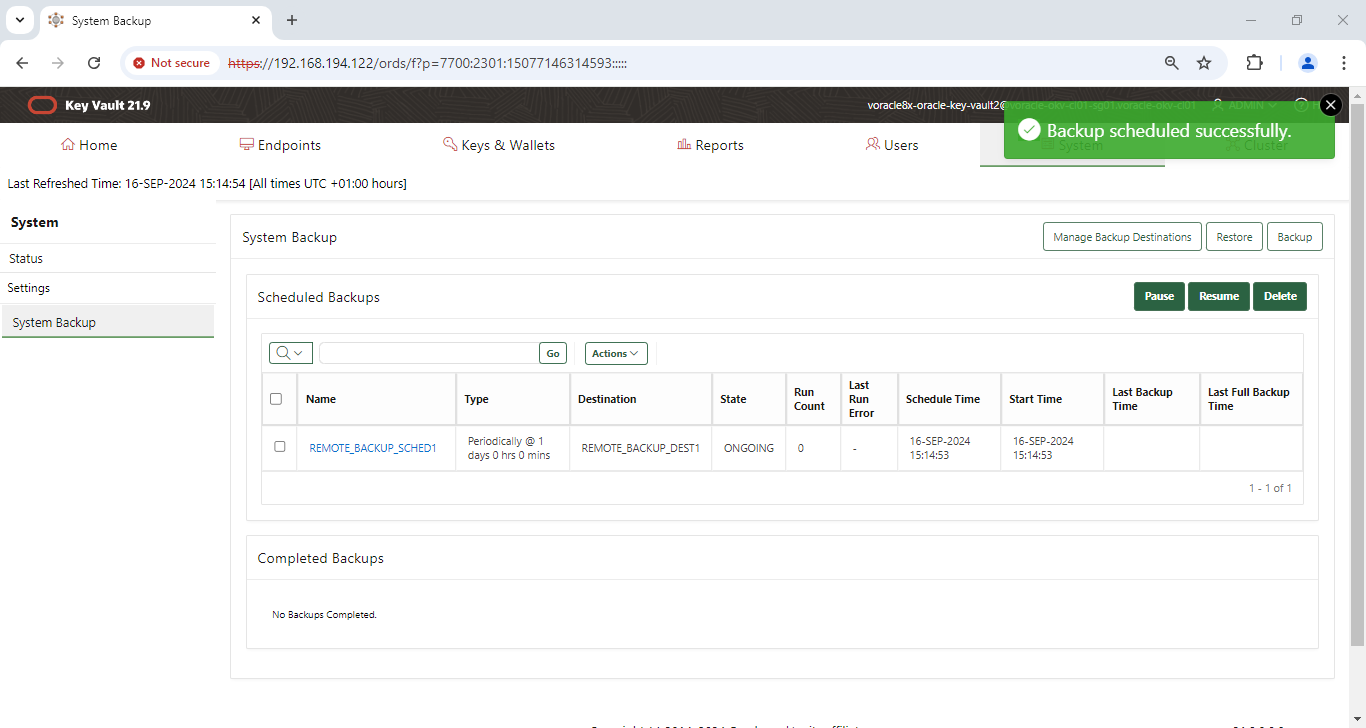
  1. Scheduling the OKV backup:

  1. We can secure a regular backup from OKV.


Flow diagram:


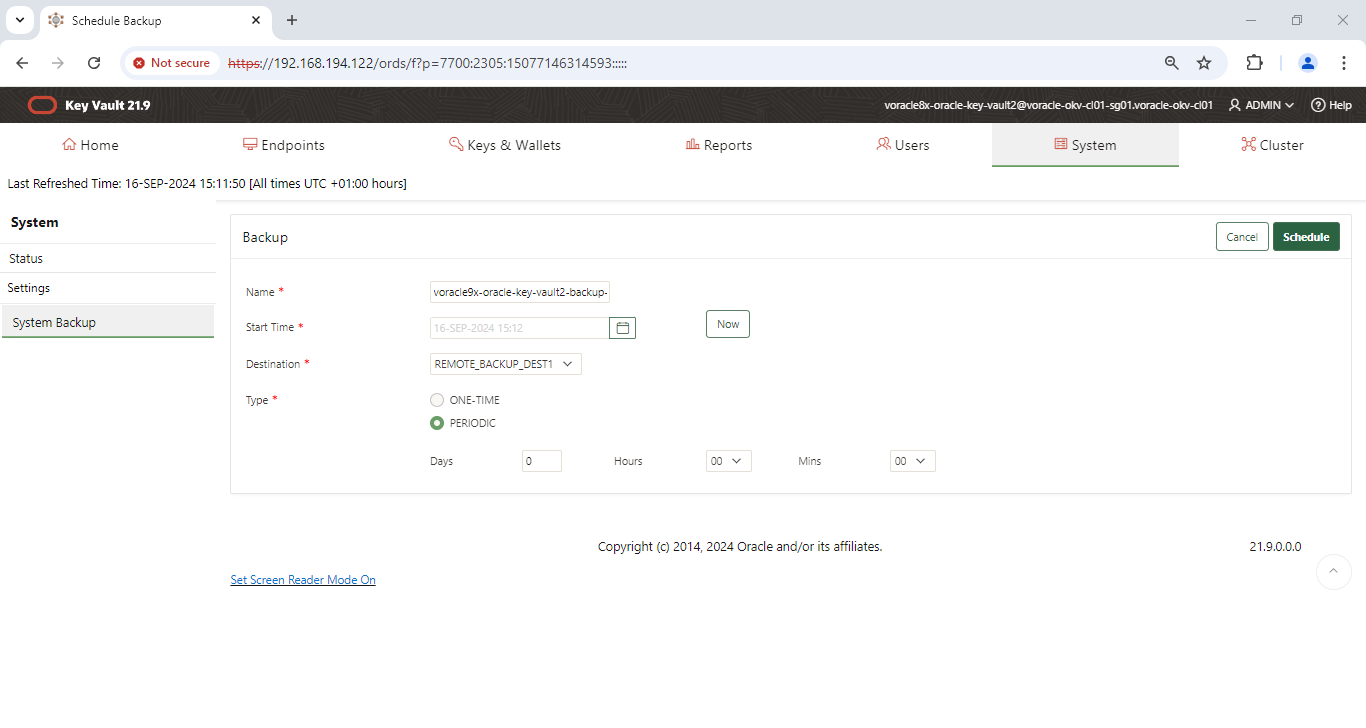
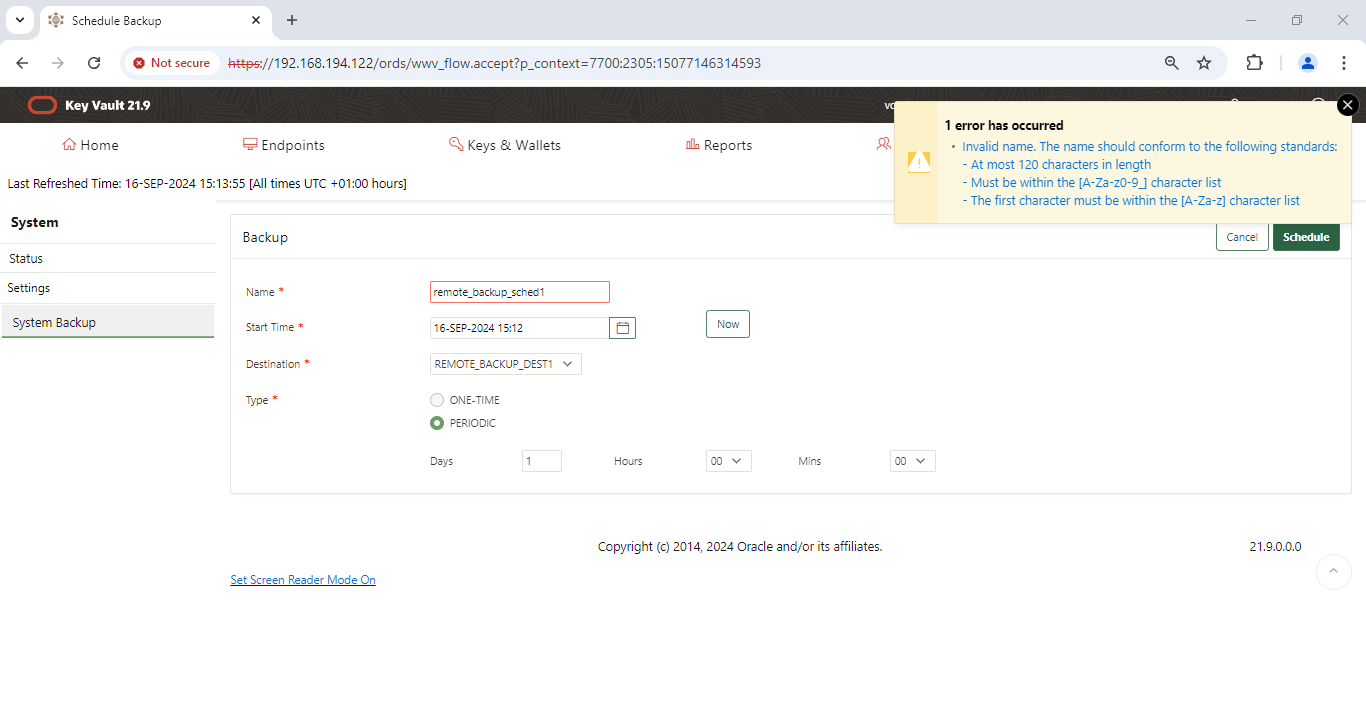
OKV console -> system -> settings -> backup & restore -> system backup page -> backup -> enter details requested (this page can be used to toggle between one-time or periodic)


schedule name: remote_backup_sched1

Start time: Now or later in the evening

destination type: Remote

type: periodic

System - Google Chrome


Schedule Backup - Google Chrome

Schedule Backup - Google Chrome

Schedule Backup - Google Chrome


System Backup - Google Chrome


Backup validation:


Before the backup:


[oracle@vcentos79-oracle-sa1 okvbackup_ssd2]$ ls -altr

total 4

drwxr-xr-x.  2 oracle dba     6 Sep 16 14:42 .

dr-xr-xr-x. 24 root   root 4096 Sep 16 14:44 ..

[oracle@vcentos79-oracle-sa1 okvbackup_ssd2]$


  1. Test backup and validation


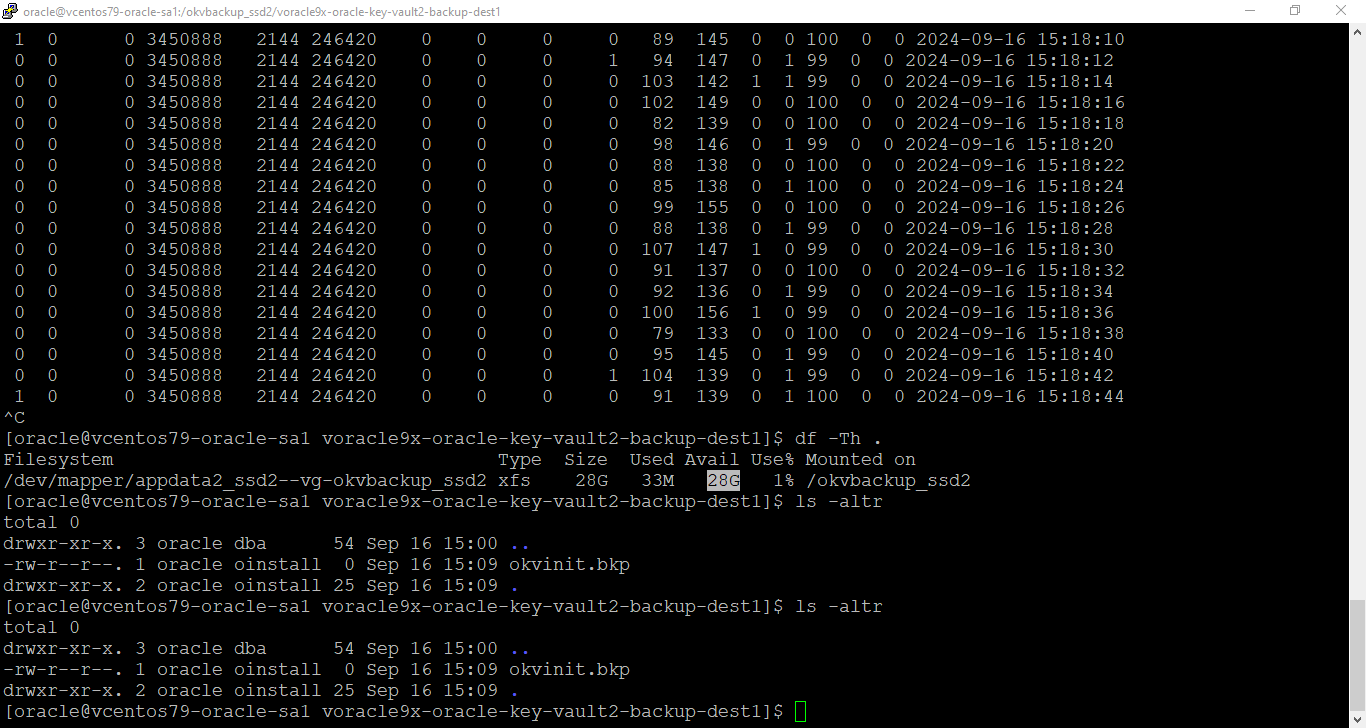
Scheduled backup started to run and we can see a file called okvinit.bkp created.

Our main concern is, we should protect the okvbackup_periodic.mgr file; which shouldn’t be over written and at the same time modified manually.

This is the catalogue of the OKV backup.


[oracle@vcentos79-oracle-sa1 voracle9x-oracle-key-vault2-backup-dest1]$ ls -altr

total 0

drwxr-xr-x. 3 oracle dba      54 Sep 16 15:00 ..

-rw-r--r--. 1 oracle oinstall  0 Sep 16 15:09 okvinit.bkp

drwxr-xr-x. 2 oracle oinstall 25 Sep 16 15:09 .

[oracle@vcentos79-oracle-sa1 voracle9x-oracle-key-vault2-backup-dest1]$


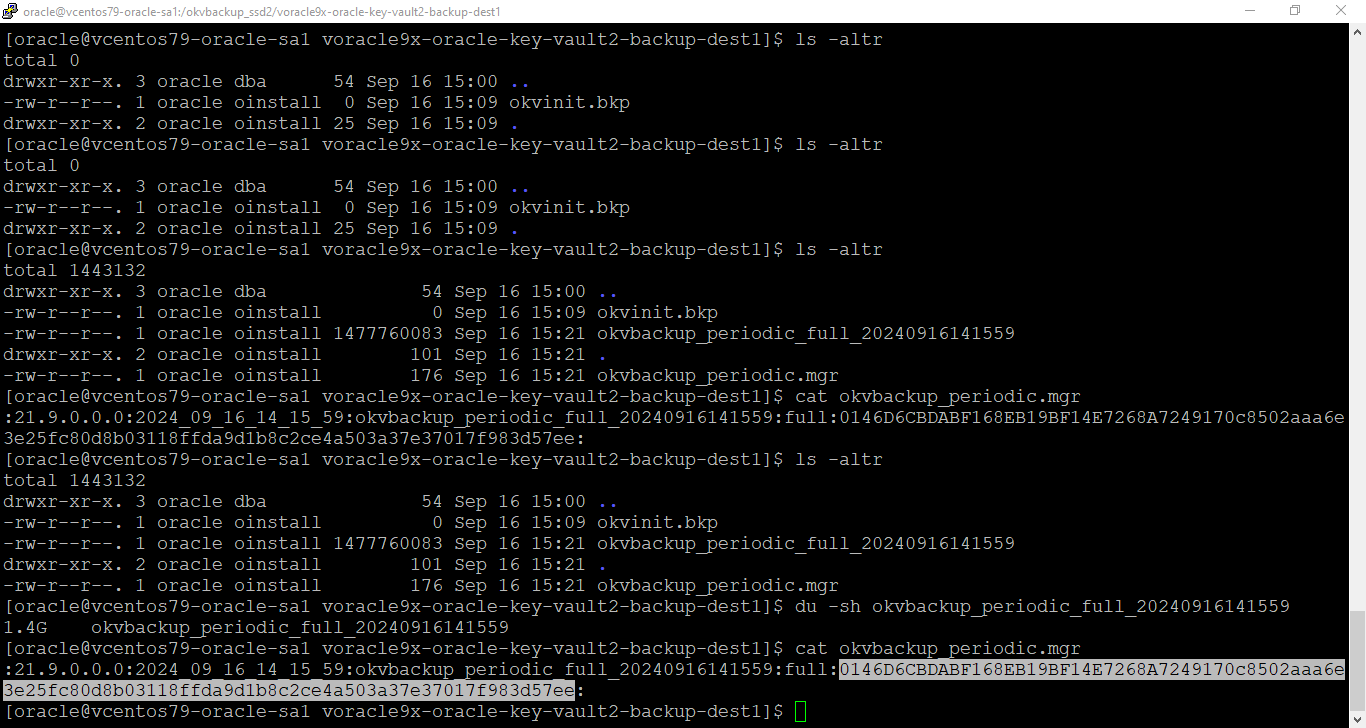
backup finished:


[oracle@vcentos79-oracle-sa1 voracle9x-oracle-key-vault2-backup-dest1]$ ls -altr

total 1443132

drwxr-xr-x. 3 oracle dba              54 Sep 16 15:00 ..

-rw-r--r--. 1 oracle oinstall          0 Sep 16 15:09 okvinit.bkp

-rw-r--r--. 1 oracle oinstall 1477760083 Sep 16 15:21 okvbackup_periodic_full_20240916141559

drwxr-xr-x. 2 oracle oinstall        101 Sep 16 15:21 .

-rw-r--r--. 1 oracle oinstall        176 Sep 16 15:21 okvbackup_periodic.mgr

[oracle@vcentos79-oracle-sa1 voracle9x-oracle-key-vault2-backup-dest1]$ du -sh okvbackup_periodic_full_20240916141559

1.4G    okvbackup_periodic_full_20240916141559

[oracle@vcentos79-oracle-sa1 voracle9x-oracle-key-vault2-backup-dest1]$ cat okvbackup_periodic.mgr

:21.9.0.0.0:2024_09_16_14_15_59:okvbackup_periodic_full_20240916141559:full:0146D6CBDABF168EB19BF14E7268A7249170c8502aaa6e3e25fc80d8b03118ffda9d1b8c2ce4a503a37e37017f983d57ee:

[oracle@vcentos79-oracle-sa1 voracle9x-oracle-key-vault2-backup-dest1]$


oracle@vcentos79-oracle-sa1:/okvbackup_ssd2/voracle9x-oracle-key-vault2-backup-dest1

oracle@vcentos79-oracle-sa1:/okvbackup_ssd2/voracle9x-oracle-key-vault2-backup-dest1

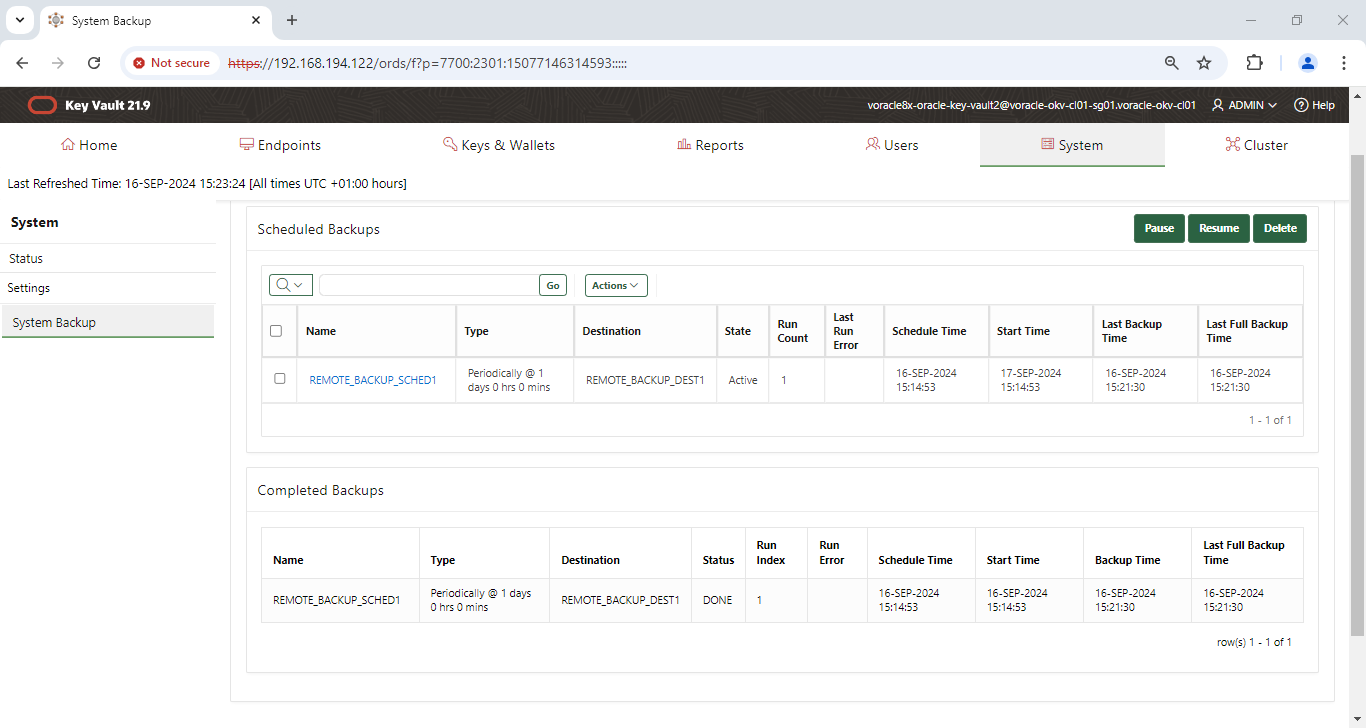
Browser also shows the backup history for the destination selected:

System Backup - Google Chrome


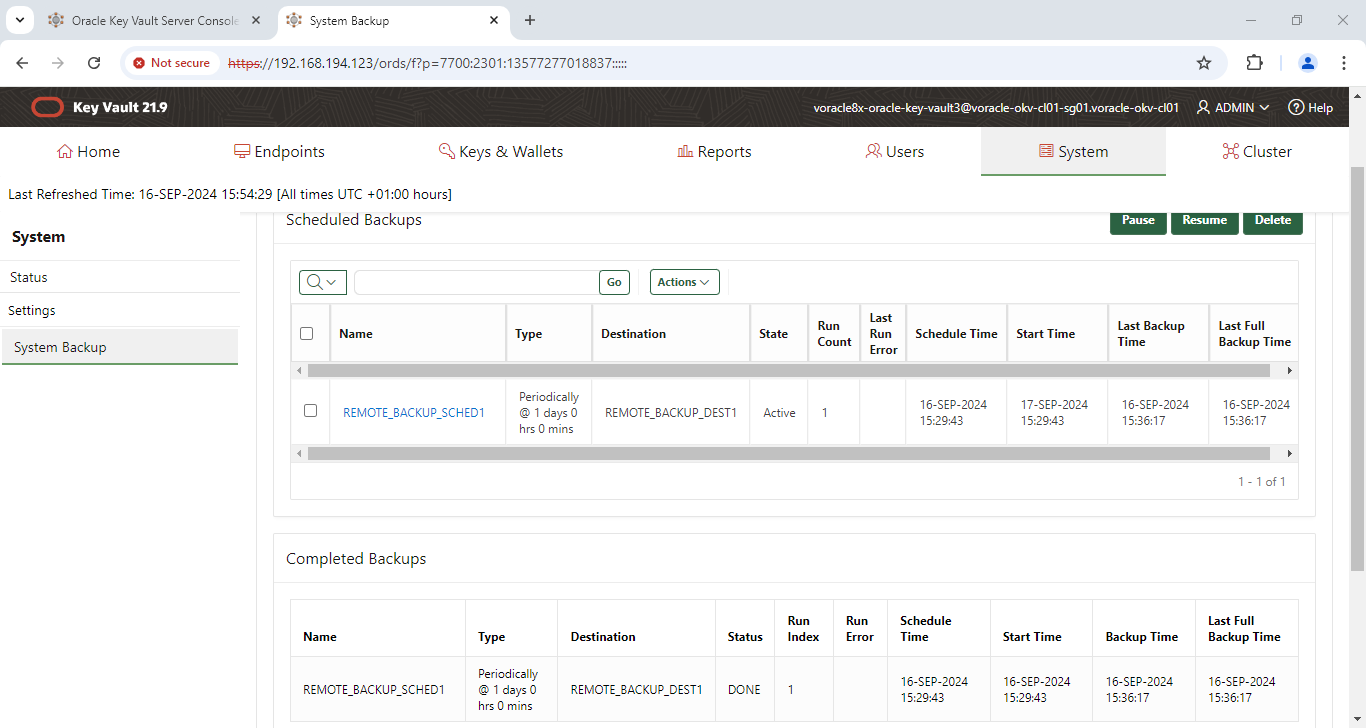
Multi-master other node backup:

System Backup - Google Chrome


YouTube Video: